Real Time Adherence Configuration
Real Time Agent Adherence in Monet WFO Live features:
- Option to create custom names for phone states for any number of activities, such as call wrap-up, special after call work, or outbound preparation.
- Set thresholds for each state, indicating how much time is considered “in adherence” so that time in a particular state can automatically be broken down into acceptable and unacceptable time.
- Define which states are included or not included in the agent adherence calculation.

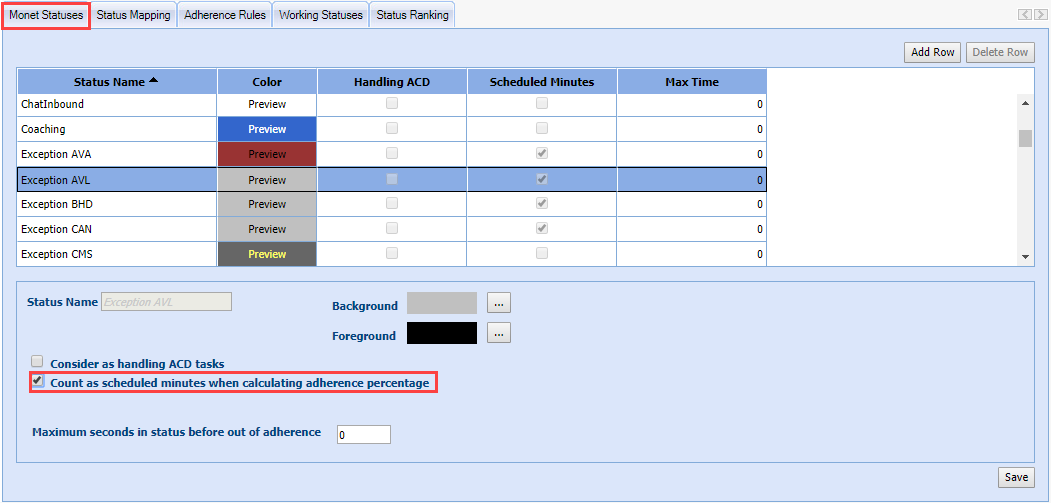
On the ACD State mapping screen, there are three tabs for customizing agent states: Monet Statuses, Status Mapping and Adherence Rules. The Monet Statuses tab will let you add as many statuses as desired to track agent adherence. All of the Exceptions and Non-call will be added by default and will be considered “scheduled activities,” along with Available, Break, Lunch, and Logged Out. These statuses will populate the Scheduled Activities grid in the Adherence Rules tab as activities that can be assigned statuses of allowed and unallowed.
Creating a Monet Status
To create a Monet Status:
- Select Add Row.
- Enter the Status Name.
- Choose the foreground/background color for how you would like this status to appear in the RTA monitoring screen.
- Select Save.
- Select the Status Mapping tab.
- Locate the status in the list.
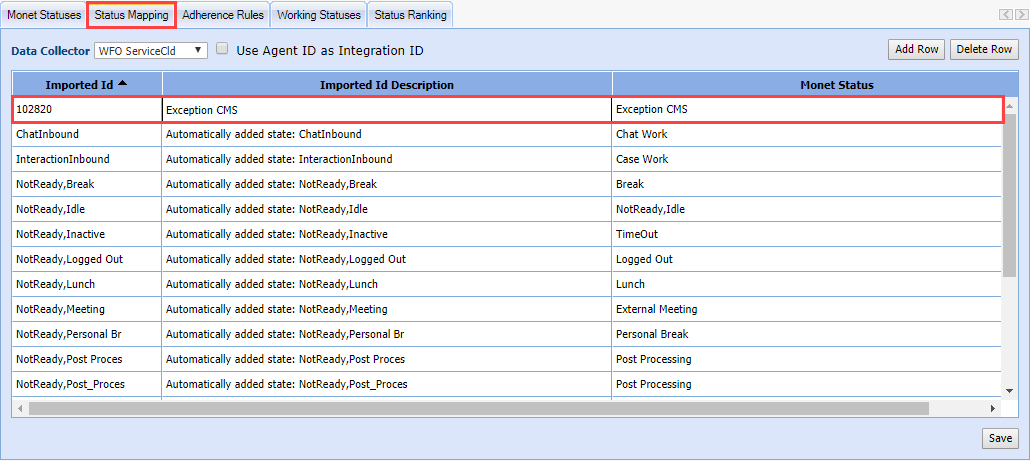
Mapping a Monet Status to a Phone State
To map a Monet status to a phone state:
- Locate the correct Imported id or Imported id Description of the desired state.
- Choose the correct Monet Status in the drop-down menu for that state.
- Select Save All.
Setting Up Custom Adherence Rules
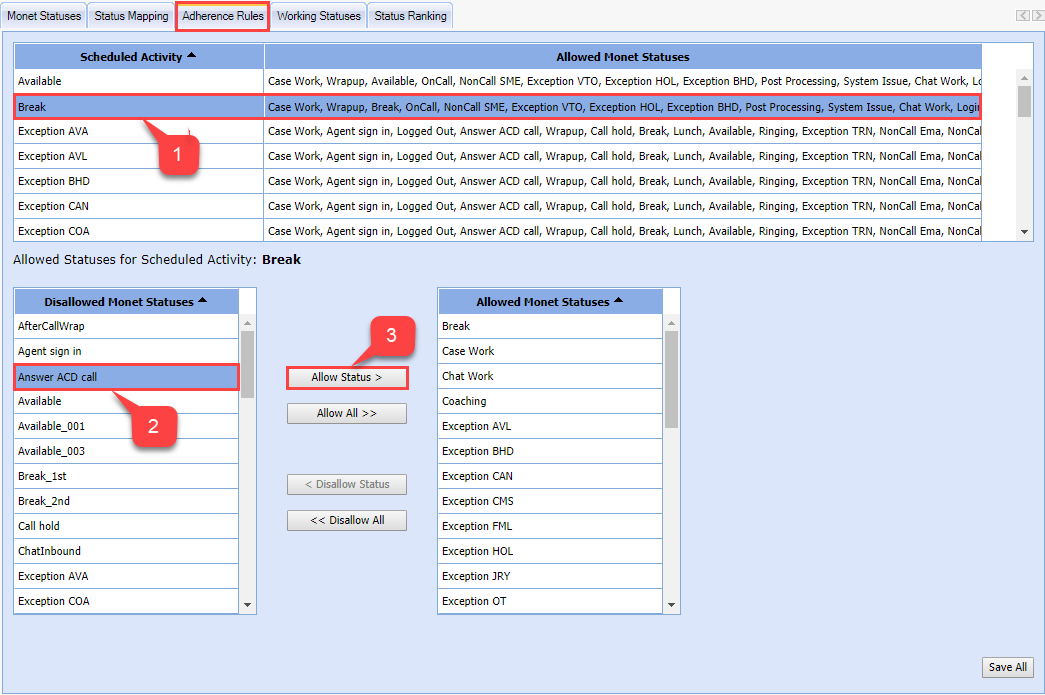
Once all of the ACD statuses are mapped to the desired state within Monet, you can then customize which statuses are allowed and not allowed for each scheduled activity. For example, you may configure Monet so that if an agent is scheduled to go to break, but is still on an ACD call, this time will not be counted against them. To do so, just move the Answer ACD Call status into the allowed statuses list for the break status, as follows:
- Select the Scheduled Activity you wish to edit.
- Select the status in the list of statuses that are not allowed during the scheduled activity in question.
- Select the Allow Status button.
- Select Save All.
This will set up Monet so that for each scheduled activity, agents are considered in adherence when in one of the statuses from the Allowed Monet Statuses list, and out of adherence for when in one of the statuses from the Disallowed Monet Statuses list.
Setting Up Thresholds for Statuses
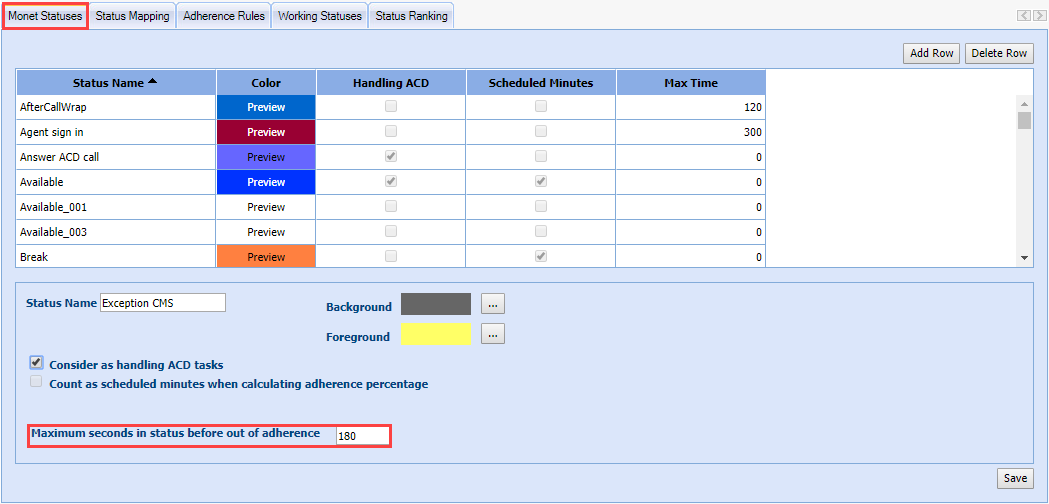
The new custom statuses allow the user to set a threshold of seconds for any status that will count the agent as in adherence only until the threshold is passed. This limit is per transaction and not cumulative. The status has to be in the allowed statuses list for the scheduled activity in question in order for this feature to have any impact. Otherwise, it would not be an allowed status in the first place, and would be considered out of adherence.
As an example, if there is a phone state that you have the agents go into for a bathroom break, you may allow agents to enter this status when scheduled to be available, but set a maximum time for an individual bathroom break. To allow the status, you would first create a customer status called “Bathroom Break”, map that status to the correct Imported ID, and ensure that “Bathroom Break” is within the list of “Allowed Monet Statuses” for the Available activity. Then to provide an upper limit on the amount of time an agent can spend on the state at once, enter a number of seconds in the “Maximum seconds in status before out of adherence” field, highlighted below. In this example, once the agent was in the “Bathroom Break” status for more than 180 seconds (i.e., three minutes), they would begin to accrue out of adherence time; an agent who took a five minute bathroom break would thus be out of adherence for two minutes.
Counting Scheduled Activities as Scheduled Minutes
In some cases, there may be scheduled activities that you do not want to be factored into the overall scheduled minutes when calculating adherence percentages in the Agent Adherence reports. A good example of this would be an exception used to take a partial day off for a doctor’s appointment. Assume an agent originally scheduled for 8 hours (480 minutes), who consistently averages 90% of her time in adherence / 10% out adherence. If she takes two hours for a doctor’s appointment, she is left with only 6 hours (360 minutes) where her adherence is a concern. If she is out of adherence 10% of those 6 hours, that is 36 minutes. If we count all of her time as scheduled, this would give us:
36 minutes /480 minutes = 7.5% out of adherence / 92.5% in adherence
Excluding the doctor’s appointment from the total scheduled time in adherence calculations, we get:
36 minutes /360 minutes = 10% out of adherence / 90% in adherence
So by counting only the parts of the schedule important to adherence, we achieve a more accurate representation of the agent’s adherence during that time. Depending upon your adherence rules, you may even find it best to include only “Available” in the scheduled minutes within the adherence calculations.
By default all scheduled activities are counted towards the total amount of scheduled minutes. This can be changed on the Monet Status tab by un-checking the box labeled Count as scheduled minutes when calculating adherence percentage and saving. This setting will affect only the adherence reports, not assignment or any other place where total time scheduled may be important.